How to Delete Instagram Account on Mobile (2026 Step-by-Step Guide)
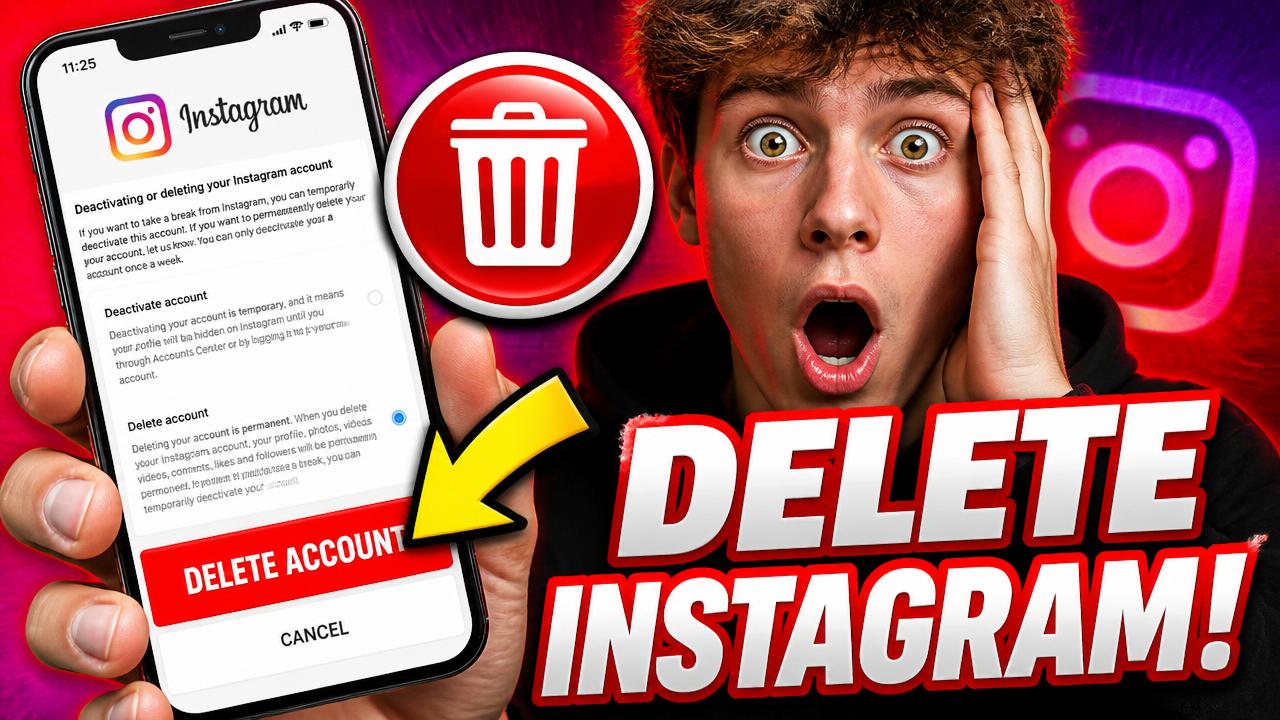
Ready to quit Instagram? In 2026 you can delete your Instagram account directly from your mobile phone — no laptop required. This guide shows you exactly how to permanently delete (or temporarily deactivate) your Instagram account on iPhone and Android in under 2 minutes.
Delete vs Deactivate — which one should you pick?
- Deactivate: Your profile, photos and Reels are hidden. You can log back in any time to restore everything. Perfect if you just need a break.
- Delete: Permanent. After a 30-day grace period, Instagram wipes your photos, videos, followers, comments, likes and DMs forever. There's no going back.
Before you delete — do these 3 things first
- Download your data. Go to Settings → Accounts Center → Your information and permissions → Download your information. Instagram emails you a ZIP with every photo, Reel, Story and DM.
- Save your Reels and photos. Use Insto Reels to download any of your Reels, videos or photos in HD before they disappear.
- Unlink connected apps. Any app that logs in with Instagram (Canva, Later, Meta Business Suite) will lose access.
How to delete Instagram account on iPhone (2026)
- Open the Instagram app and tap your profile picture (bottom-right).
- Tap the ≡ menu (top-right) → Settings and activity.
- Scroll down and tap Accounts Center.
- Tap Personal details → Account ownership and control → Deactivation or deletion.
- Select your Instagram account → tap Delete account.
- Pick a reason, enter your password, and tap Continue → Delete account.
Your account is now scheduled for deletion. You have 30 days to log back in and cancel if you change your mind.
How to delete Instagram account on Android (2026)
- Open the Instagram app and tap your profile icon.
- Tap the three-line menu → Settings and activity.
- Tap Accounts Center → Personal details.
- Choose Account ownership and control → Deactivation or deletion.
- Select your account → Delete account.
- Confirm your password and tap Delete account.
How to deactivate Instagram on mobile (temporary)
Same path — but on the last screen pick Deactivate account instead of Delete. Your profile disappears immediately and comes back the moment you log in again. You can deactivate once per week.
What happens in the 30-day grace period?
- Your profile, photos, Reels and DMs are hidden from everyone.
- Log in within 30 days to instantly cancel deletion and restore everything.
- After day 30, Instagram permanently wipes your account and username. The username may become available for others.
Can't find the delete option?
Instagram sometimes buries the option deep inside Accounts Center. If you're stuck, open Safari or Chrome on your phone and go directly to instagram.com/accounts/remove/request/permanent — log in and delete straight from mobile browser.
Common questions
Will my followers know I deleted? No — your account simply vanishes from their followers list, with no notification.
Can I create a new account with the same email? Yes, after the 30-day window, but the old username may already be taken.
Are my DMs deleted from other people's inboxes? No. Messages you sent remain in the recipient's chat, but your name shows as "Instagram User".
Save your content before it's gone forever
Once the 30 days end, your Reels, photos and videos are unrecoverable. Take 2 minutes to back everything up with Insto Reels — free HD downloads, no watermark, no login. Then delete with confidence.
Try Insto Reels
The fastest free way to save Instagram Reels, Videos and Photos in HD.
Open the downloader →